
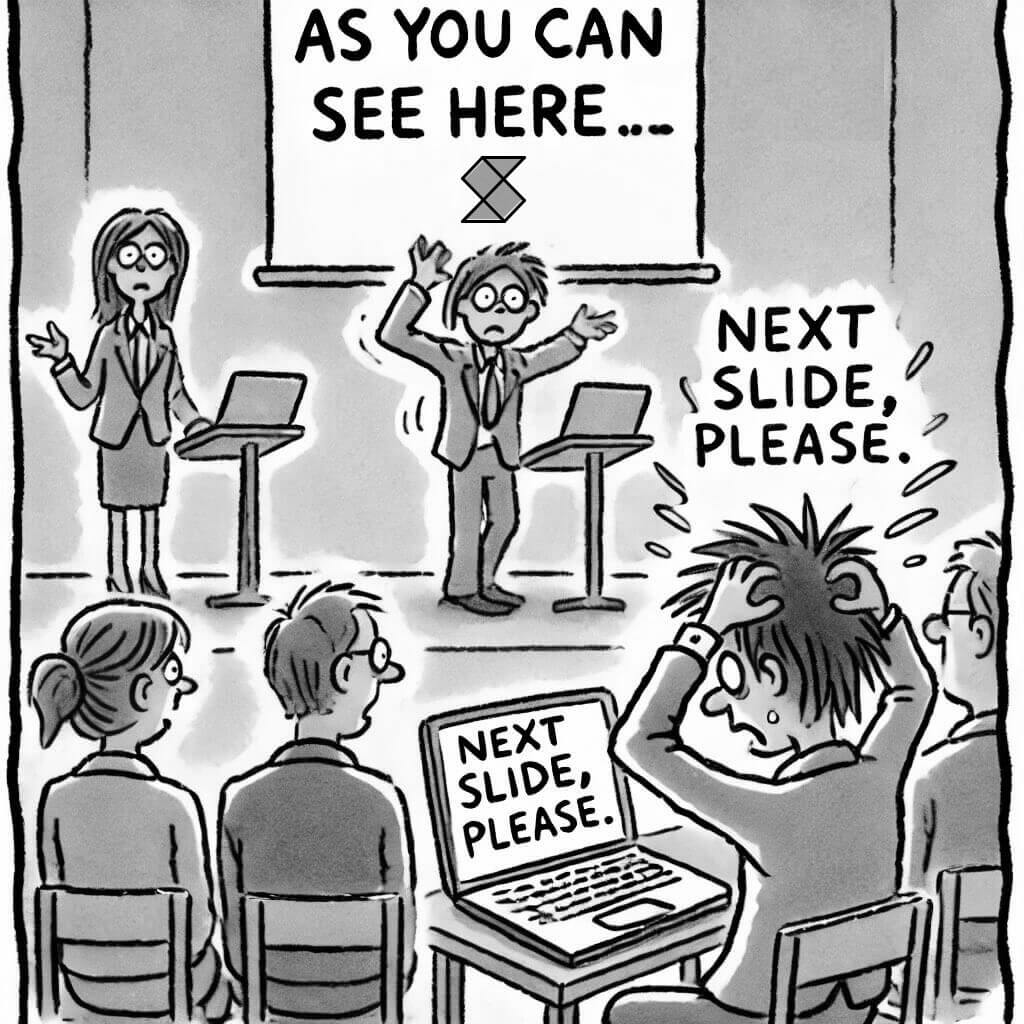
Take control of your slides, without saying a word
Tired of awkwardly asking, "Next slide, please"? We feel your pain. Our app puts the power back in the hands of the presenter—literally! No more juggling devices or relying on someone else to click forward. Seamlessly control your presentation from wherever you are, and never lose your flow again. Whether you're across the room or across the world, your slides will be exactly where you need them, when you need them—minus the soundtrack of "next slide, please.
Worried about security?
We've got that covered too.
With our app, no confidential slide content is ever uploaded from the presenter's device. Your slides stay safely stored and synced in real-time, with zero exchange of private presentation data. It’s a seamless experience for you, and peace of mind for your company—because protecting your information shouldn’t mean sacrificing control.
Pricing
One plan to simplify your budgeting
Standard
£9 /month
All features required for your company to manage presentations.
- Unlimited presentations
- Unlimited co-pilots
- Unrestricted access to add or remove slides
Frequently asked questions
- How do I get started?
-
- 1. Create a presentation.
- 2. Add slide images to your presentation.
- 3. Share presentation link to designated co-pilots.
After those three simple step, simply continue with your presentation as normal and when you'd like the next slide, simply click the next button.
- Explain copilot?
-
Screen sharing a presentation may mean the presenter may not actually be the person sharing their screen. In this situation the presenter requires the person sharing their screen to navigate the presentation slides.
This is where Sayansho Slides offers a helping hand! The presenter can become a copilot and navigate the slides themselves removing the embarrassing need to ask "next slide please". The copilot opens a webpage and using simple controls can remotely navigate the slides in the presentation 🎉.
- How many co-pilots can I have?
-
An unlimited amount of co-pilots! This means if there are multiple speakers, they can each take control of their presentation.
- How is my presentation data safe and secure?
-
Under no circumstances do we upload your slides to any remote servers. The slides are stored on the presenters computer only.
- How many presentations can I create?
-
As many as you want, there's no limit!
- How can I export a PowerPoint (PPT) presentation as images?
-
- 1. Open PowerPoint and load your presentation.
- 2. Click "File" > "Save As" (or "Export" on macOS).
- 3. Choose a destination folder and select either PNG or JPEG from the file type dropdown.
- 4. Click "Save", then choose "All Slides" when prompted.